How to register your card details
When applying for paid tickets, you can choose to save the credit card you use. Once your card is saved, you can simply select it at checkout the next time you apply, so you won't need to enter your card details again.
All card information is securely handled by payments platform Stripe.
*Please note that this feature is available for events held in Japan or Singapore.
On PC / Smartphone browser
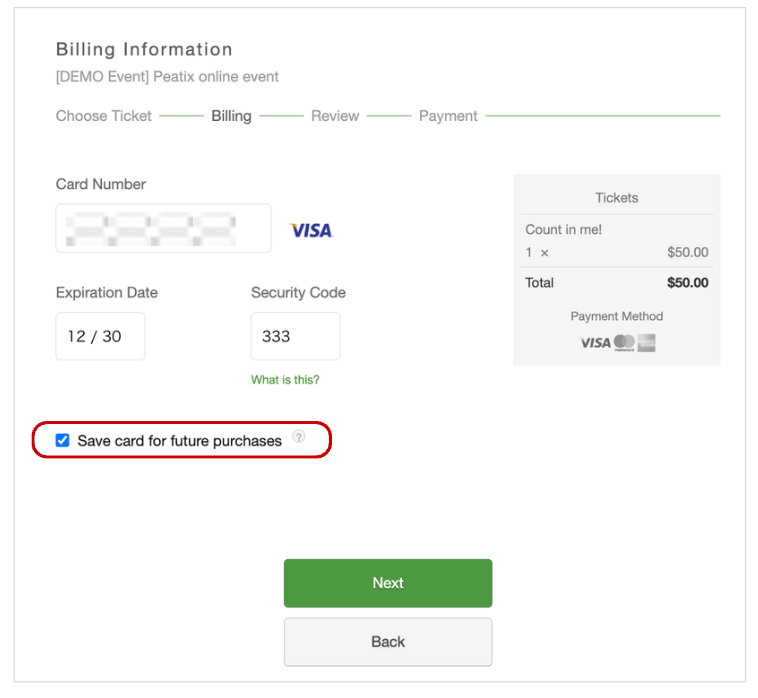
On the "Billing Information" screen, keep the "Save card for future purchases" checkbox selected and complete your application to save the card you used. If you uncheck the box before completing your application, your card details will not be saved.
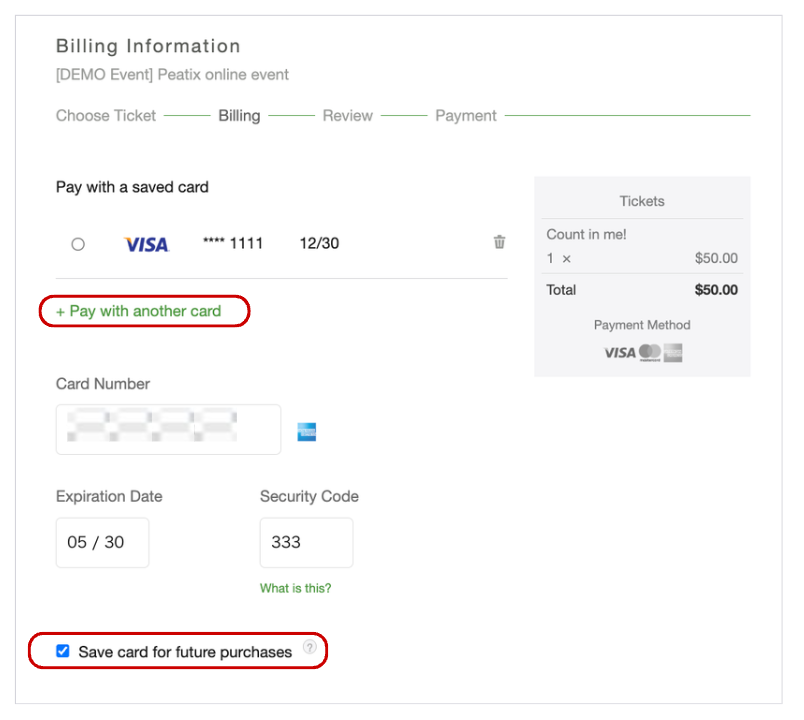
You can also save another card when you already have a saved card. On the "Billing Information" screen, click "+ Pay with another card" to enter another card's details, then keep the "Save card for future purchases" checkbox selected and complete your application.
On the Peatix app
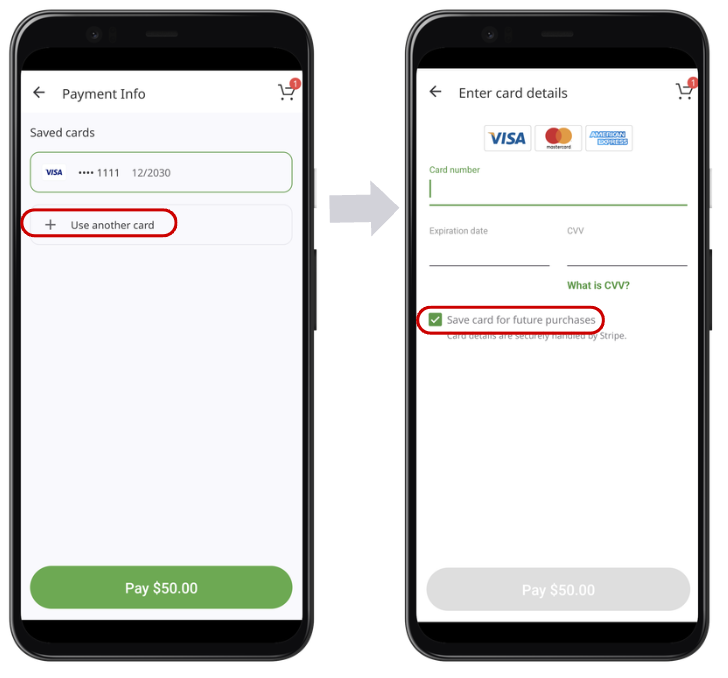
On the "Enter card details" screen, keep the "Save card for future purchases" checkbox selected and complete your application to save the card you used. If you uncheck the box before completing your application, your card details will not be saved.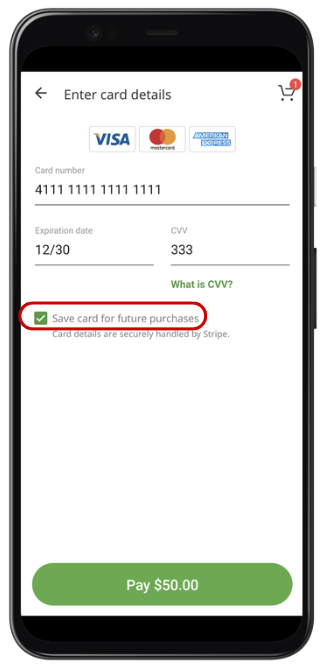
You can also save another card when you already have a saved card. On the "Payment Info" screen, tap "+ Use another card" to enter another card's details, then keep the "Save card for future purchases" checkbox selected and complete your application.
How to change your card details
You cannot change your saved card details directly. If you want to use a different card, delete the card you want to change and then register the new card.
How to delete your card details
You can delete your saved credit card information anytime from "Payment Methods".
On PC / Smartphone browser
*Please note that the "Payment Methods" section is not displayed if you have no saved credit card information.
1. Access https://peatix.com/signin and sign in to your account.
2. Open "Payment Methods".
- On a PC browser: click your account name in the upper right corner of the screen and select "Payment Methods".
- On a smartphone browser: go to "My Tickets/Events" in the upper right corner of the screen, tap the "Menu Button (≡)", and select "Payment Methods".
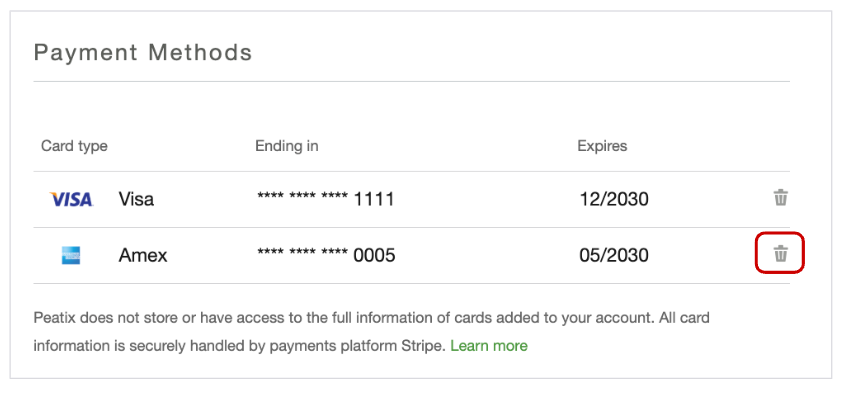
3. Your saved credit card information is displayed. Click the garbage bin icon to the right of the card you want to delete.
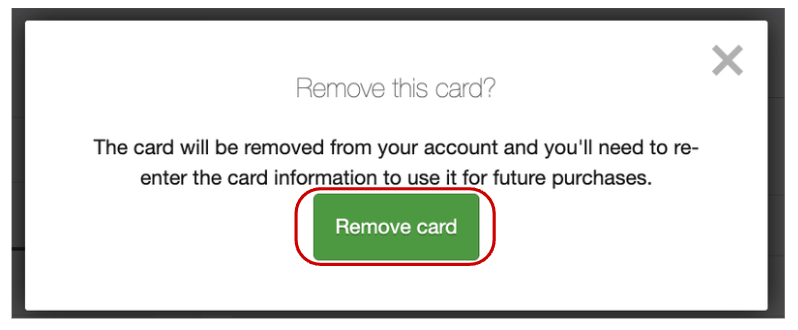
4. On the confirmation screen, click "Remove card".
On the Peatix app
1. Sign in to your account.
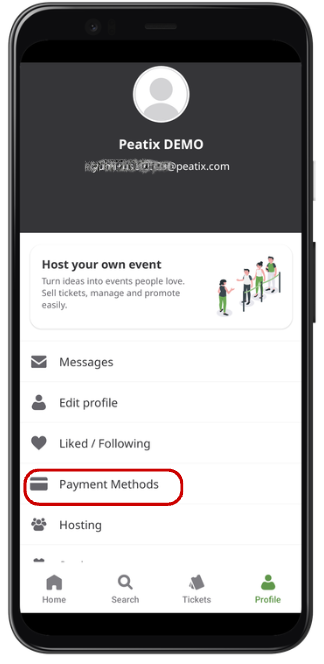
2. Select "Payment Methods" from the "Profile" tab.
3. Your saved card information is displayed. Tap the "⋮" (three-dot) menu for the card you want to delete, then select "Remove".
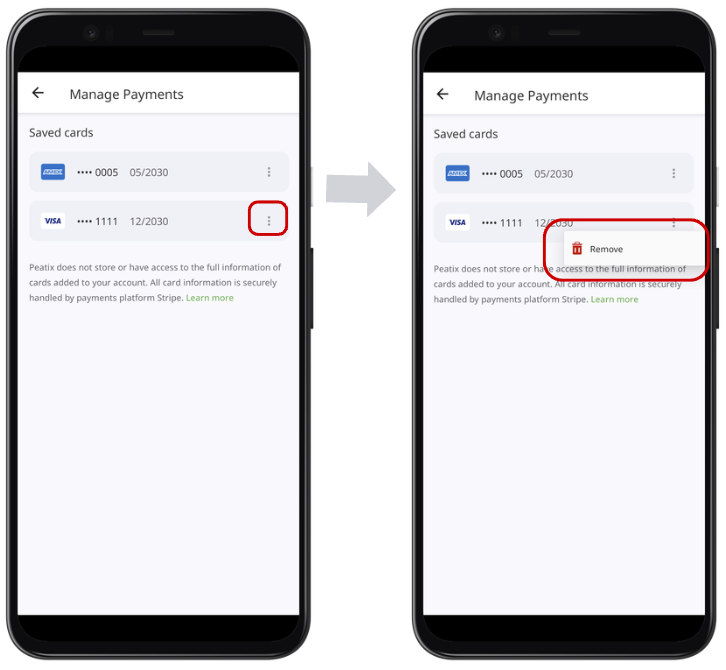
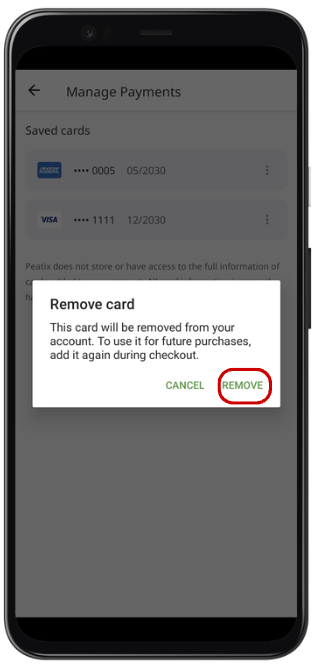
4. On the confirmation screen, tap "REMOVE".